Shipping Overview
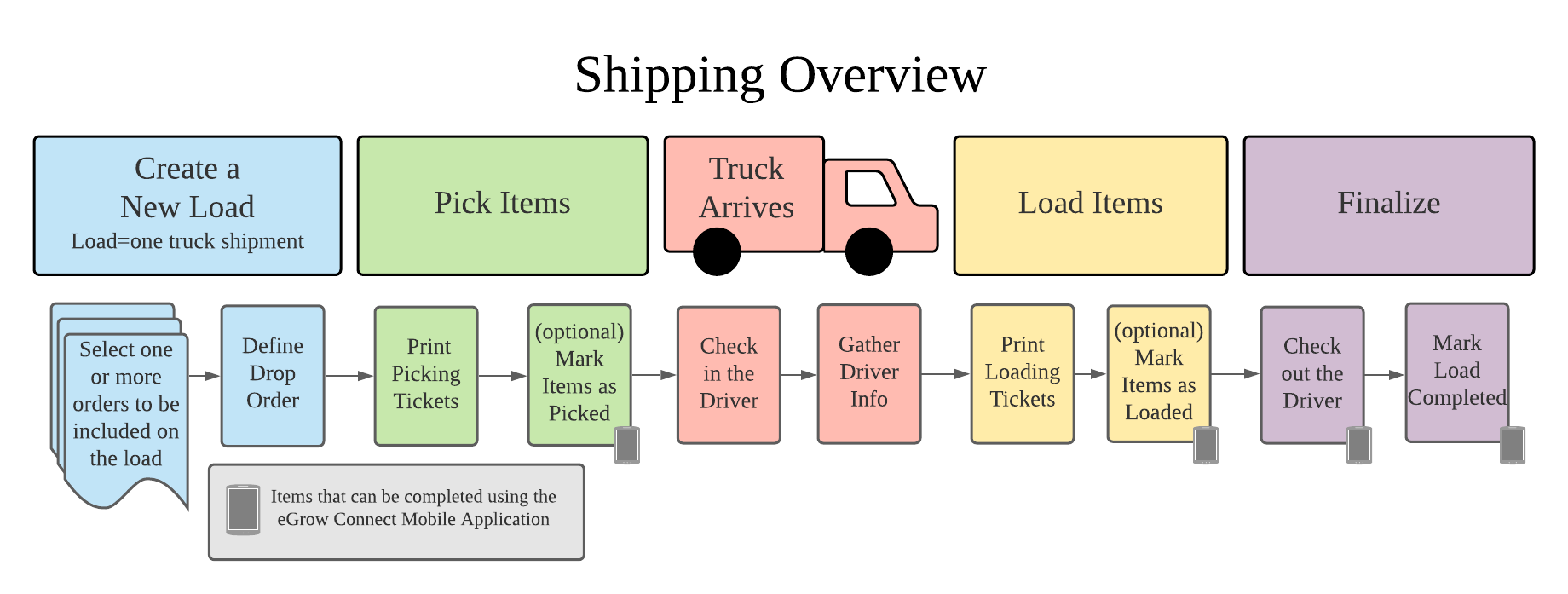
eGrow Connect uses the Shipping module to track the process of order fulfillment. This includes creating and managing shipping loads, creating picking and loading tickets, recording truck, carrier and broker information, and more.
The eGrow Connect Mobile Application also offers a way to track picking and loading of items in real time from mobile devices.
Creating a Load
A load in eGrow Connect is intended as a one truck shipment of items which can have multiple drops and pickups. A load can include items from one or more open sales orders. For nurseries utlizing the Purchasing Add-on and have in-house or carrier services that also pick up purchased items while out for deliveries, loads can also include items from one or more purchase orders. There are two ways to create a new load as follows.
- Directly from a sales order: Click the top taskbar link for
 Schedule Load from an within an open sales order to create a new load that includes that order’s items. You can always adjust or add items from other orders to the load later.
 - In the Shipping module: Create a new load in the shipping module directly and add order items to it.
Once a load is created, you can view and record information about the load, truck, broker/carrier, orders on the load, and picked and loaded items. See a detailed description of each field on a Load here
Pick Items
eGrow Connect provides you with several tools to assist with the picking process.
- Picking Tickets: You can print picking tickets by clicking
 Print in the taskbar and selecting Master Picking Ticket which will include all items from orders on the load. You can also print a Picking Ticket by individual sales order using the order's Print options.
 - Pick Tracking: You can track the number of items as they are picked and even change picking locations as needed as picking happens.
Please Note: Tracking picking and loading is not required, but once started, all items must be marked as “Picked” and “Loaded” before the load can be completed.
Truck Arrives
When the truck arrives, eGrow can record vital information about the truck and driver and provide you with documents and data needed.
- Print Load Documents: During Onboarding, eGrow will determine which documents you require for Loads and configure them for you. You may want to print out a Loading Ticket, Bill of Lading, Driver Sheet, or Load Summary from the Print button in the top taskbar.
- Check in the Driver: When the driver arrives you can mark arrival time, record driver and truck data, and determine an ETA for the delivery.
Load Items
- Print a Loading Ticket: You can print a Loading Ticket that will indicate to your employees which items to load and the order they must be loaded on the truck.
- Track Loading: eGrow allows you to track loading using various methods.
Please Note: Tracking picking and loading is not required, but once started, all items must be marked as “Picked” and “Loaded” before the load can be completed.
Finalize
- Check out the driver: When the truck departs you can record the departure time which will change the status of the load to Departed while you wait for the shipment(s) to arrive.
- Mark the load completed: Once paperwork is completed on a load you can mark it completed which then allows the sales orders to be posted.