Order Review by Item tool
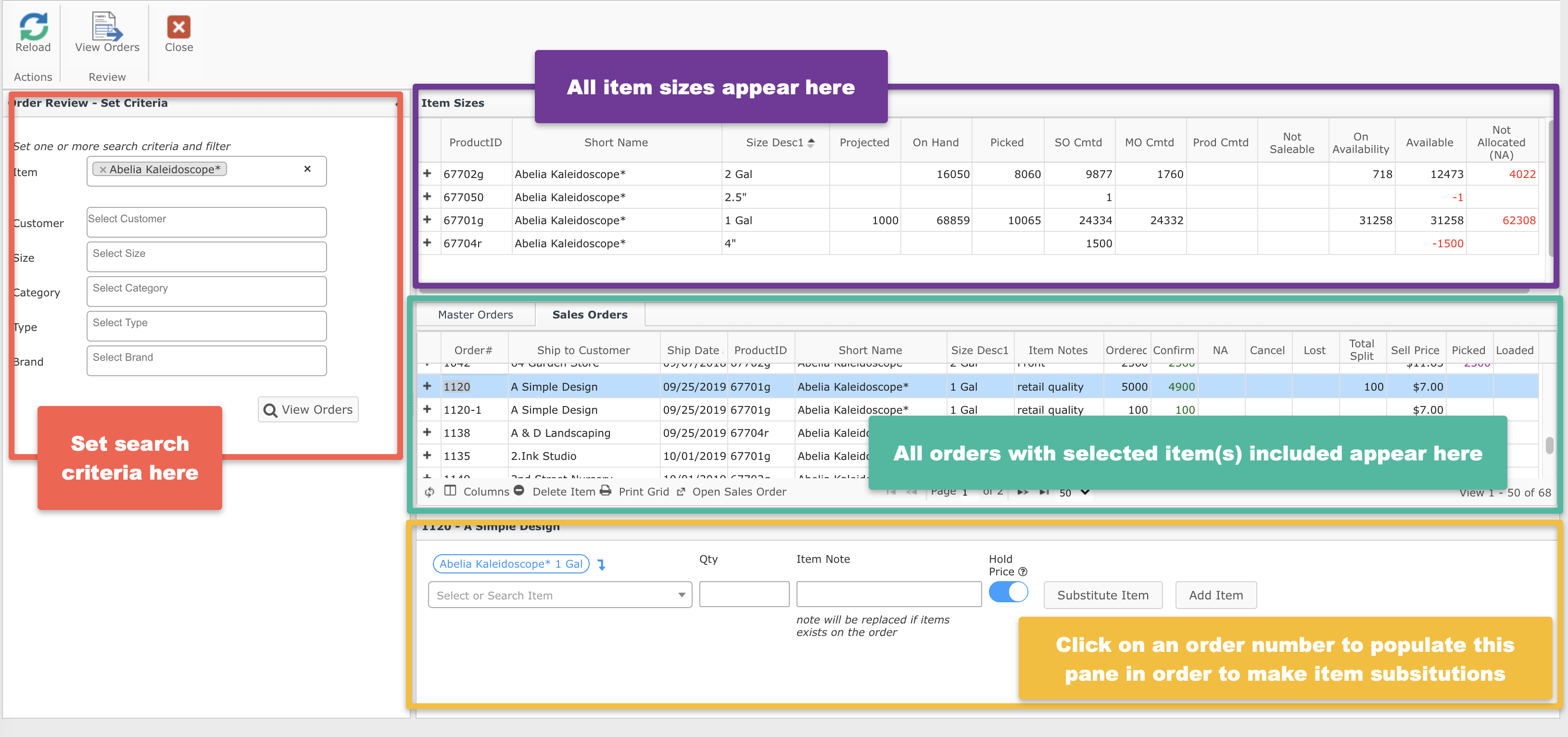
This tool was created for nurseries who take orders for the upcoming season (6-8 months in advance) but do not confirm to customers immediately, instead they later review all the orders and designate portions of the inventory to the various orders.
Note: If your nursery takes orders and then confirms the items right away, you will not need to use this tool.
- Navigate to
 Sales, the
  Order Review by Item.
 - Complete the fields in the left pane by including the Items, Customers, Sizes, Categories, Types, and Brands that you want to include in your review.
- Then hit
 View Orders.
 - Use the information about your items from the top-right pane to confirm the amounts to customers in their master or sales orders in the center-right pane by entering the confirmed quantities in the “Cfrm” column.
- Be sure to hit Enter after changing the confirmed quantities. When you do this, it will update the confirmed quantities in the orders as well.
- Use the bottom-right pane to create substitutions. See details below.
Making item substitutions
- In the center right pane, click on the master order or sales order number you want to make substitutions to.
- A list of the items on that order with remaining unconfirmed quantities will appear in the bottom-right pane with options below each.
- For each substitution, choose the item you will be substituting from the drop-down menu, enter a quantity.
- Next, include a note for the customer about the substitution.
- Toggle to hold the sell price of the substituted item or not.
- Click Substitute Item to make the change. A blue triangle will appear on the order item to indicate it was a substitution.
- You may instead click Add Item to include your selection as a new line item or Replace Item.
Allocating in the Order Review by Item Tool
Once you are finished confirming quantities to orders, you can also manage the allocation of each item in the top-right pane by clicking the to the left of the item name.