Mobile App: Shipping Load Screen Details
The mobile app allows you to view and edit some aspects of existing loads in eGrow Connect. When you open a specific load here is what you might see. Read below for a description of what you can do in each portion of this screen.
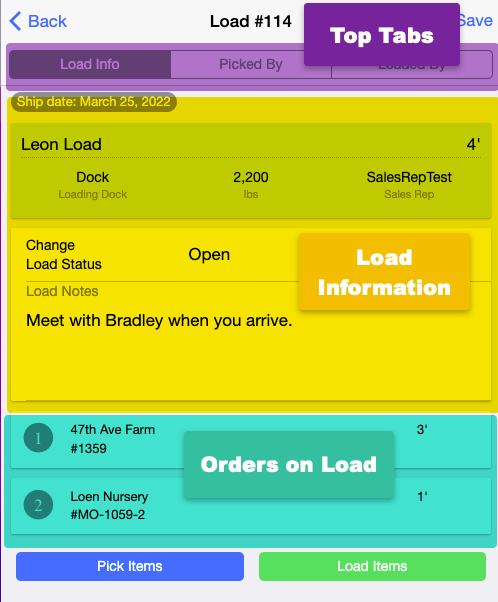
Top Tabs
These tabs allow you to toggle between Load Info, as seen above, and lists of employees in Picked By and Loaded By so you can record the number of hours spent on each task and who performed the task.
Tip: To include an employee on these lists, go to  System Setup > Users & Permissions > Employees. After double clicking on an employee from the left pane, click into the Job Information tab in the right pane. Toggle the button under Job Description to include them on the Picked By and Loaded By lists.
Load Information
In this portion of the screen you can view specs of the shipment and also change the status of the shipment or write notes.
Orders on Load
This section shows a list of orders included on the load. You can swipe left on any order and tap Pick Items to pick items one order at a time rather than viewing the entire list of items on the load.
Pick and Load Item Buttons
Click on either button to see a full list of items included on the load so you can see or update the picked and loaded items while processing the shipment.
Important Note: Items must be picked before they can be loaded. Also, once a load has started the picking and loading process, both steps must be completed for all items before the orders on the load can be posted.