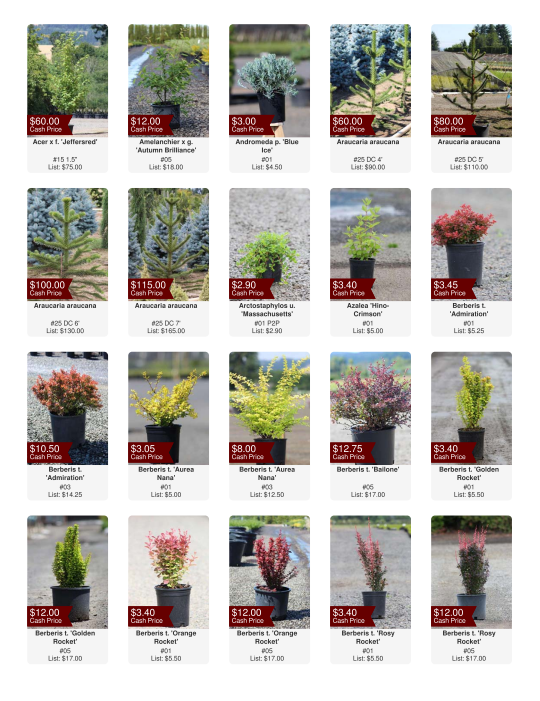
Create a Picture Availability
You can create Picture Availabilities that display a photo next to each available item in a PDF format.
- Navigate to
 Inventory, then
  Availabilities.
 - Select an availability template from the drop-down menu.
- Click on the "Set Filter for..." tab and confirm or adjust the filter settings for the availability.
- Click
 Picture Availability in the top menu.
 - Make adjustments to the Photo Availability by hover over the icon in the upper-right corner of each picture. You can choose
- Upload Image to add new photos,
- View More Images to see all current photos, or
- Exclude This to remove that item from the availability.
- You may also add an item to the Hot and Sale lists by clicking to enable in the upper left of the image.